This slug had existing search visibility, so it remains live. The content has been rewritten as a legal activation guide focused on Microsoft-supported options rather than crack or bypass methods.

If Microsoft Office does not activate automatically after installation, start with legitimate recovery and licensing checks before trying anything else. Most failures are caused by the wrong Microsoft account, expired subscriptions, or a device no longer covered by the license.
Recommended recovery path
- Connect the device to the internet and sign into the Microsoft account originally used for the purchase.
- Open an Office app, go to File > Account, and review the activation state shown in the product section.
- If the license is missing, check the Microsoft account order history or contact the original reseller with proof of purchase.
- If a previous broken installation is blocking activation, remove old Office installs before trying again.
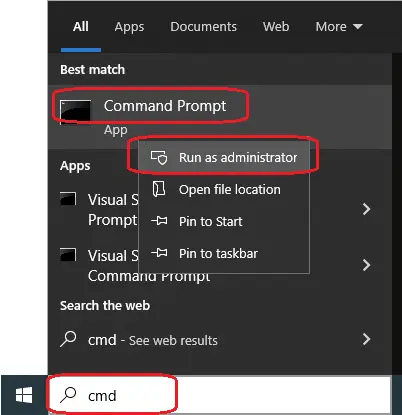
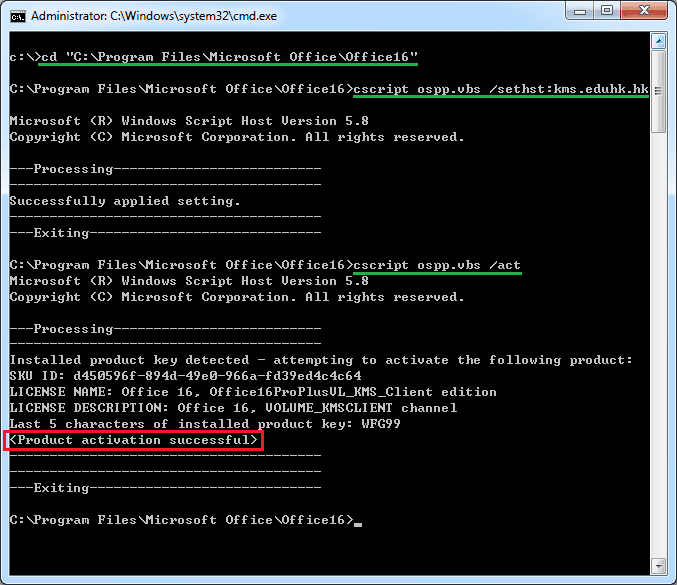
The original legacy article included unsupported cracking and KMS bypass commands. Those instructions have been intentionally removed. We are preserving the ranked URL while keeping the page compliant and safer for users.
Safe checks before contacting support
- Confirm whether the license is Microsoft 365 or a perpetual Office version such as Office 2019.
- Verify that the installed edition matches the purchased license.
- Check whether the device limit on the account has already been reached.
- Use Microsoft's official troubleshooting flow for sign-in and activation issues.
Why unofficial activation tools are a bad idea
- They can introduce malware or system-level changes that are difficult to undo.
- They often break future updates and create ongoing license instability.
- For business use, they create obvious compliance and security risks.