Windows installation guides are most useful when they separate preparation from execution. Most failed installs come from skipped compatibility checks, missing backups, or unclear upgrade choices.

This walkthrough follows the same structure as the legacy article: prepare the USB installer, boot from it, and complete a clean Windows 11 installation step by step.
- Accept the terms in the Windows setup tool and choose the recommended options for this PC.
- Select USB flash drive and choose your target USB device.
- Wait for Windows 11 to download and create the installation media.
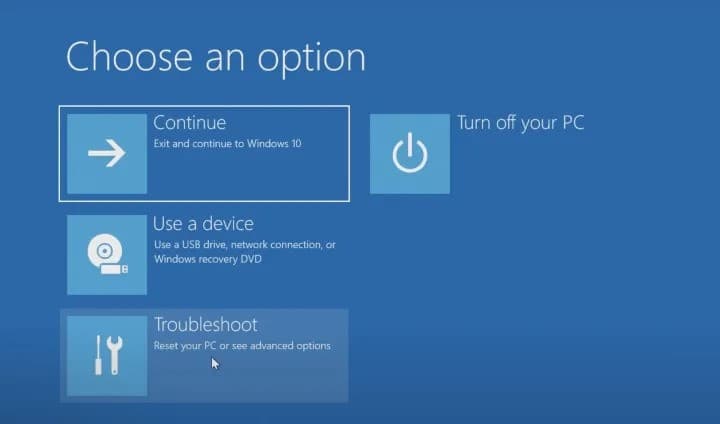
- Open Settings > Update & Security > Recovery and use Advanced startup.
- Choose Use a device and boot from the USB installer.
- Pick language and the correct Windows 11 edition.
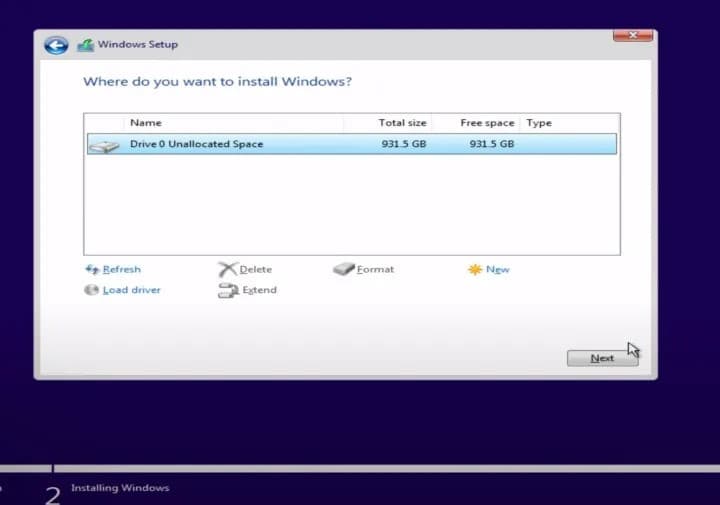
- Choose Custom install, format the destination drive if needed, and continue.
- Complete setup and finish the out-of-box experience.
The original article cross-linked to the Office activation post during installation steps. That link path is still preserved here for continuity.
Related: Office activation guide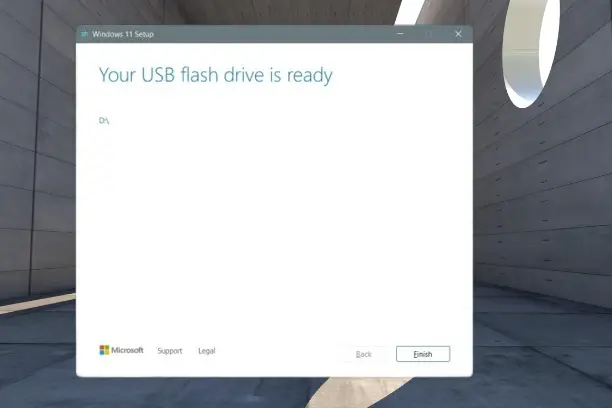
Before you start
- Back up important files before upgrading or formatting drives.
- Check Windows 11 hardware requirements before creating installation media.
- Keep the USB drive connected until the machine has fully restarted into setup.